
Navigation
Install the app
How to install the app on iOS
Follow along with the video below to see how to install our site as a web app on your home screen.
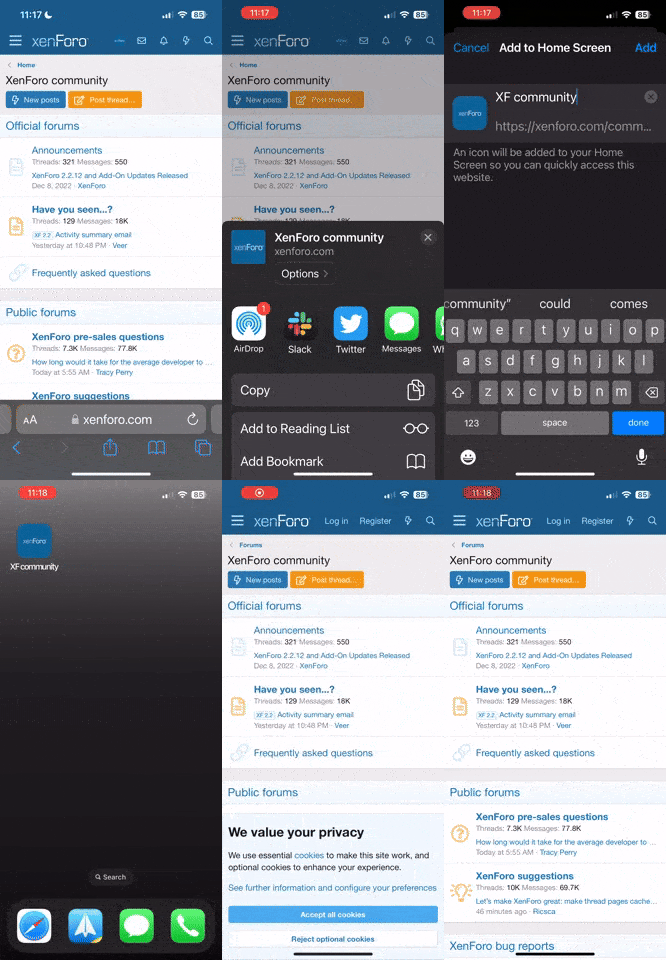
Note: this_feature_currently_requires_accessing_site_using_safari
More options
You are using an out of date browser. It may not display this or other websites correctly.
You should upgrade or use an alternative browser.
You should upgrade or use an alternative browser.
How can I remove my card from Shopify?
- Thread starter Ubunkulu
- Start date
Hi! To remove your card from Shopify, there are slightly varying methods suggested across different sources. Here are the steps based on the information gathered:
1. Log into your Shopify Account:
- Navigate to the Shopify login page and enter your credentials to log in.
2. Access Billing Settings:
- Once logged in, locate and click on "Settings" in the left-hand sidebar or in your Shopify admin, then select "Billing" from the dropdown menu or submenu that appears.
3. Locate Your Card Information:
- Scroll down to the "Credit Cards" section or the "Payment methods" section, depending on the exact layout of your Shopify admin page.
4. Remove or Replace Your Card:
- If there is a trash can icon next to the card information, click on it to remove the card. A pop-up window will appear, confirm that you want to delete the card by clicking “OK” in the pop-up window
- If the trash can icon is not available, or if the credit card is the only available payment method, click "Replace credit card". You will need to enter the required information for the new card, then click "Replace credit card" again to confirm the change
5. Edit Card Information (if necessary):
- If there is an "Edit" link instead, click on it to edit the credit card details. A pop-up window will appear where you can make necessary changes3.
6. Confirm Changes:
- After making the necessary changes, ensure that they have been saved and updated in your Shopify account.
7. Additional Steps for Shopify Credit Business Card:
- If you have a Shopify Credit business card, you might need to select your reason for canceling and replacing it, then click "Next". Enter your shipping information and click "Confirm and replace card". Reset the PIN for your Shopify Credit business card if necessary
I hope I was helpful. If you experience any problems during this process, you may want to contact Shopify Support for further assistance.
1. Log into your Shopify Account:
- Navigate to the Shopify login page and enter your credentials to log in.
2. Access Billing Settings:
- Once logged in, locate and click on "Settings" in the left-hand sidebar or in your Shopify admin, then select "Billing" from the dropdown menu or submenu that appears.
3. Locate Your Card Information:
- Scroll down to the "Credit Cards" section or the "Payment methods" section, depending on the exact layout of your Shopify admin page.
4. Remove or Replace Your Card:
- If there is a trash can icon next to the card information, click on it to remove the card. A pop-up window will appear, confirm that you want to delete the card by clicking “OK” in the pop-up window
- If the trash can icon is not available, or if the credit card is the only available payment method, click "Replace credit card". You will need to enter the required information for the new card, then click "Replace credit card" again to confirm the change
5. Edit Card Information (if necessary):
- If there is an "Edit" link instead, click on it to edit the credit card details. A pop-up window will appear where you can make necessary changes3.
6. Confirm Changes:
- After making the necessary changes, ensure that they have been saved and updated in your Shopify account.
7. Additional Steps for Shopify Credit Business Card:
- If you have a Shopify Credit business card, you might need to select your reason for canceling and replacing it, then click "Next". Enter your shipping information and click "Confirm and replace card". Reset the PIN for your Shopify Credit business card if necessary
I hope I was helpful. If you experience any problems during this process, you may want to contact Shopify Support for further assistance.